mullion-fileman — dual-pane TUI
A Norton Commander-style dual-pane file manager that ties the suite together: browse two directories side by side and run the CLI tools on them with a keypress or a click. The tools stay independent — mullion-fileman just launches them.
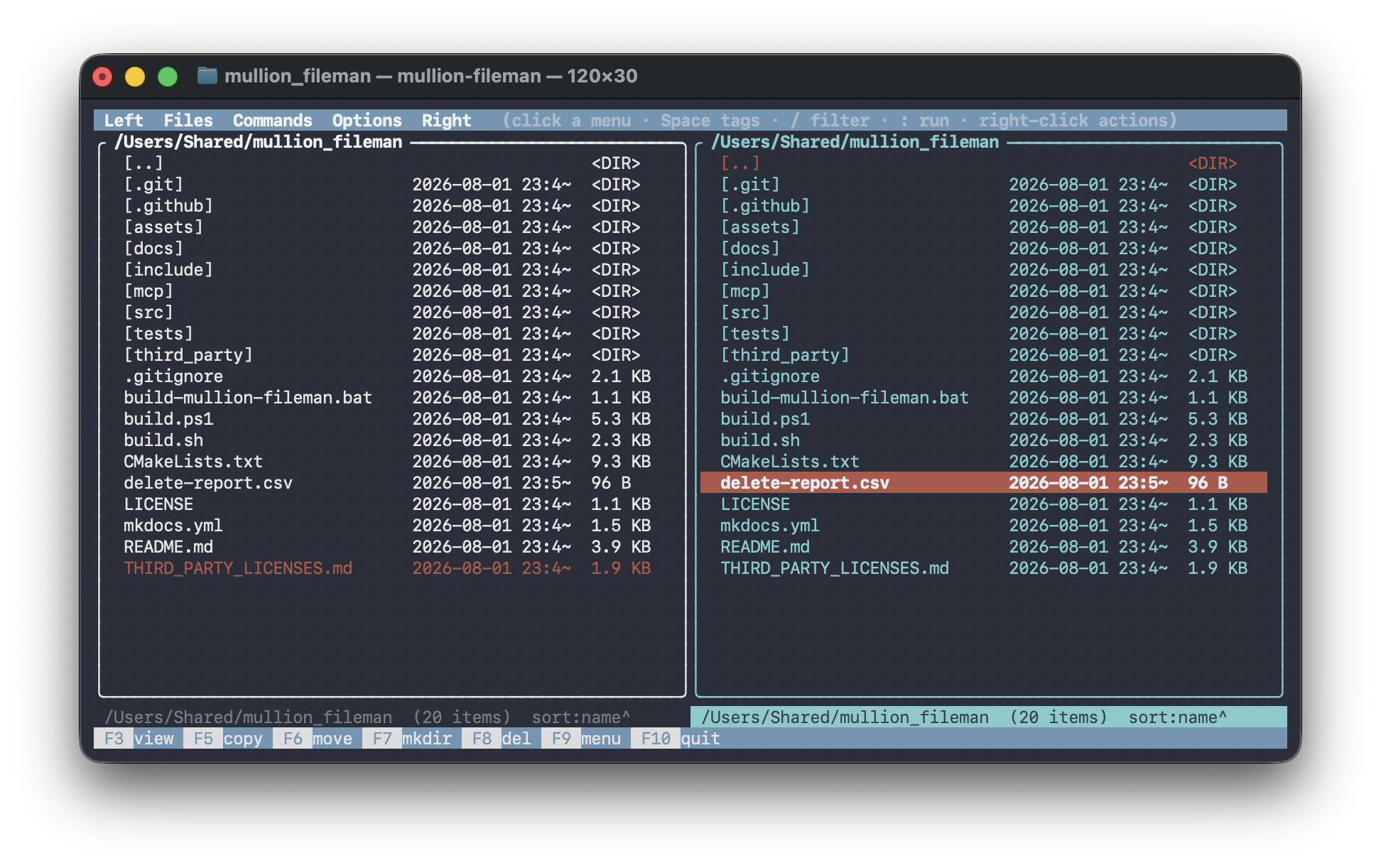
Built on FTXUI (MIT); see Building.
Keys
| Key | Action |
|---|---|
Tab / ← / → |
switch the active pane |
↑ ↓ / j k, Enter, Backspace |
move · open dir (.. to go up) · go up |
Space · + / - · * |
tag / advance · tag·untag by glob · invert tags |
/ |
quick-filter the pane (type to narrow; Esc clears, Enter keeps) |
s |
sort menu (name / ext / size / date / reverse) |
t |
directory tree — jump to a subfolder |
d |
change drive (Windows) |
f |
find files under the active pane |
x |
Tools menu — bulk rename, sort-into-other-pane, attributes, duplicates, disk usage, checksums, secret scan, shred |
m |
System Monitor — live CPU/mem/GPU + process list (see below) |
a |
ask the local AI agent (optional — see below) |
: |
run a shell command in the active pane's directory |
F3 |
view the selected file (text / hex) |
F5 F6 F7 F8 |
copy · move · make dir · delete (selection or tag set) |
r · c · k |
rename · compare panes · clean junk |
F9 / F10 / q |
open Files menu · quit · quit |
Features
- Top menu bar (Left · Files · Commands · Options · Right) — click a category
for a pull-down;
F9opens Files. - Mouse: click to select, double-click a folder to open, wheel to scroll,
click the bottom F-key ribbon and the menus; right-click for a context menu.
Click outside a menu (or
Esc) to dismiss it. - Multi-select: tagged rows turn yellow with a
*; copy/move/delete act on all tagged files (or the selection). Tags clear on directory change. - Columns: name, modified date, size; each pane shows its path, item count, tag total, and current sort on a status line.
- Safe deletes:
F8shows a dry-run and asksy/N(toggle in Options).
Options (persisted)
The Options menu toggles three settings, saved to mullion-fileman.cfg beside the
executable and restored next run:
- Confirm deletes — show the dry-run +
y/Nbefore deleting. - Overwrite on copy/move — replace existing files instead of skipping.
- Show hidden files — include dotfiles / Windows-hidden entries.
System Monitor
Press m (or Commands → System monitor…) for a live panel: CPU%, memory
used/total, a best-effort GPU line, and the top processes by CPU usage,
refreshed about once a second. It samples in-process via include/sysinfo.hpp
(the same core folder_sysmon/folder_proc use) — no subprocess involved.
Within the panel: arrows/mouse select a row, k terminates the selected process
(asks to confirm first), and l / n / h set its priority to low / normal /
high. Esc closes the panel and stops the background refresh.
AI agent (optional)
Press a (or Commands → Ask AI…) for a local, offline AI assistant. Ask
it about the current folders in plain language; it inspects them with read-only
tools (list a directory, folder_find, folder_view, folder_parity compare)
and then answers. It never modifies files — destructive actions stay on the
F-keys with their confirmations. It is optional and off by default: in a
normal build, invoking it shows a dialog explaining how to enable it. Enabling builds mullion-fileman with -DBUILD_MULLION_FILEMAN_AI=ON (which embeds
llama.cpp) and uses a local
Gemma 4 GGUF model — the small, CPU-friendly
google/gemma-4-E2B-it-qat-q4_0.
No data leaves your machine, and everything else in mullion-fileman works without it.
Get a model — auto-download (easiest). Options → Download AI model…
lists several Gemma models (E2B → 31B); pick one and mullion-fileman downloads it
from HuggingFace with a live progress bar (press Esc to cancel — partial
data stays cached), caches it (so it's instant next time), selects it, and saves
the path. There's also a Custom HuggingFace repo… entry
for any GGUF repo. This uses llama.cpp's common_download_model over HTTPS
(bundled LibreSSL — no system OpenSSL needed) and works only in the AI build.
Model path (manual). Or point mullion-fileman at a model you already have via
Options → Set AI model path… (a .gguf file or a folder containing one —
mullion-fileman picks the .gguf inside). Either way it's saved to mullion-fileman.cfg
(modelPath=…) and reused next run. You can also set the MULLION_FILEMAN_MODEL
environment variable, or drop a model.gguf next to the executable.
Voice input (talk to the AI)
Press V (or Commands → Speak to AI) to speak your request instead of
typing it. mullion-fileman records from the default microphone (a ● REC indicator
shows); press Enter to stop and send, or Esc to cancel.
The audio goes straight into Gemma 4's native audio encoder — there's no
separate speech-to-text step. This uses llama.cpp's multimodal (mtmd) library
and the model's mmproj (audio/vision projector), which the downloader fetches
automatically alongside the GGUF. It only works with an audio-capable model
(the Gemma 4 E2B/E4B GGUFs include the audio encoder); if the loaded model's
mmproj is missing or vision-only, the dialog says so. Everything stays offline.
Your spoken request runs through the same tool-using agent loop as a typed
question, so you can say things like "find the biggest log under this folder"
and it will use folder_find and answer. The reply shows what it heard
(🗣 You said: …) followed by the answer.
Speak replies (TTS). Turn on Options → Speak AI replies to have answers
read aloud with the OS voice (Windows SAPI / macOS say / Linux espeak). It's
a shell-out, so no extra dependency; the setting is saved in mullion-fileman.cfg.
GPU. mullion-fileman offloads all layers to the GPU when the build has a GPU
backend and a device is present, otherwise it runs on CPU. Build with a backend
to enable it, e.g. -DGGML_CUDA=ON (NVIDIA, needs the CUDA toolkit) or
-DGGML_VULKAN=ON. Override the offload with MULLION_FILEMAN_GPU_LAYERS (0 forces
CPU).