Mullion FileMan: A Dual-Pane File Manager and a Set of Folder Tools
Mullion FileMan is a C++17 dual-pane terminal file manager. It has twenty folder_* CLI tools that compare and sync folders, and an MCP server for AI agents.

On this page
Sometimes I have two copies of the same photo library on two different drives. I do not know which files are different between the two copies. File Explorer cannot give this data, and I must know it before I delete one copy.
Mullion FileMan solves this problem. It is a C++17 project with two parts:
- Approximately twenty standalone
folder_*command line tools. These tools do the operations. - A dual-pane terminal UI, similar to Norton Commander. The UI uses the tools.
There is also an MCP server, thus an AI agent can use the same tools. This post shows how to build the project, how to use the most important tools, the dual-pane UI and the MCP server.
Build the project
There is no installer. The build puts the binaries in the project root, and you run them from there. To build the CLI tools on Windows, use this command:
.\build.ps1
On macOS or Linux, use this command:
./build.sh
The two scripts find your compiler automatically. To run the unit tests during the build, add -Test (or --test on Unix). The only requirement is a C++17 compiler with a std::filesystem that operates correctly. The CLI tools have no external dependencies.
The TUI needs FTXUI. CMake downloads it for you. Thus, use CMake to build the TUI on all platforms:
cmake -B build -DCMAKE_BUILD_TYPE=Release
cmake --build build
On Windows, a batch script builds the TUI and puts the CLI tools with it:
.\build-mullion-fileman.bat
Compare two folders
folder_parity was the first tool, and it is still the tool that I use most frequently. It examines two directory trees and shows the files that are different:
folder_parity ./backup ./live -o report.csv
Each row in the CSV file is a file that is different. Each row has one of these labels: MISSING_IN_1, MISSING_IN_2 or DIFFERENT. Each row also has the sizes and the modification dates. The report does not include files that are the same. The CSV file uses UTF-8 with a BOM, thus Excel shows non-ASCII filenames correctly.
By default, the tool compares files by size. This is fast, but it does not find a change that keeps the same file size. To make sure, add --hash. The tool then reads the full contents of each file:
folder_parity "J:\Photos" "I:\Photos" --hash --jobs -1 --ignore-system -o report.csv
--jobs -1uses all CPU cores.--ignore-systemignores.DS_Store,Thumbs.dband similar files. Without this flag, these files fill the report.
The speed of the hash operation on a photo library depends on the disk. On an SSD, the parallel version is much faster.
After you read the report, you can use the same tool to sync the two trees:
folder_parity ./backup ./live --sync --sync-to 1        # one-way mirror
folder_parity ./a ./b --sync --prefer newer             # two-way, newest wins
--prefer accepts 1, 2, newer or larger. It selects the file to keep when the two sides have the same file with different contents. You can use the exit codes in scripts:
0: the trees are the same.2: the tool found differences.1: an error occurred.
Sort files into a tree
folder_sort is the other tool that I use frequently. It moves the files from a flat folder into a directory tree. By default, it shows only a preview. It does not change files until you add --apply:
folder_sort ~/Downloads ~/Sorted --by type          # preview
folder_sort ~/Downloads ~/Sorted --by type --apply  # do it
--by selects one of five built-in layouts:
| Layout | Result |
|---|---|
date |
{year}/{month}/{name} |
month |
{year}-{month}/{name} |
type |
{category}/{name} — images, video, audio, documents, archives, code, other |
ext |
{ext}/{name} |
letter |
{firstletter}/{name} |
If these layouts do not give the structure that you want, use --template to write the path. The template accepts these fields: {name}, {stem}, {ext}, {category}, {firstletter}, {year}, {month}, {day}, {date:FMT}, {size}, and {idx} / {idx:W} for numbers with leading zeros:
folder_sort ./inbox ./archive --template "{year}/{category}/{stem}{ext}" --move --apply
By default, the tool copies the files. To move the files, add --move. If two files have the same name, the tool adds a " (2)" suffix. To skip these files, add --skip. Each run writes a CSV index that shows the new location of each file. The default name is sort-index.csv. To change it, use -o. If you use --move with an incorrect template, use this index to move the files back.
NOTE: folder_sort reads only filesystem metadata: modification time, extension and size. Thus, it has no dependencies. But --by date uses the modification date, not the date of the photo. For photos, these two dates can be years apart. For photos, use folder_photos, which reads EXIF data.
The other tools
All tools use the same rules:
- They make subfolders automatically.
- They use many CPU cores when this makes them faster.
- If an operation can cause loss of data, the tool first shows what it will do. It does not do the operation until you add
--apply. - Each tool is one executable with no shared libraries. You can copy one binary to a machine and run it.
Files and folders
| Tool | Function |
|---|---|
folder_parity |
Compare two trees, show the differences and sync them (optional) |
folder_clean |
Remove unwanted OS files (.DS_Store, Thumbs.db and similar files) |
folder_copy / folder_move / folder_delete |
Recursive file operations with many threads |
folder_find |
Find files by name, content, size or age |
folder_view |
Show a file as text or hex |
Organization
| Tool | Function |
|---|---|
folder_sort |
Move files from a flat folder into a tree from a template |
folder_rename |
Rename many files: literal, regex, case, prefix/suffix, {n:03} numbers |
folder_attr |
Timestamps, Windows attributes, POSIX chmod/owner/group |
Maintenance
| Tool | Function |
|---|---|
folder_dupes |
Find duplicate files by size, then by hash; show the space that you can recover |
folder_du |
Disk usage with bars, from largest to smallest |
folder_checksum |
Write a checksum manifest, and examine it later with --verify |
folder_shred |
Write over files before they are deleted (--passes N) |
folder_scan |
Find exposed secrets: AWS keys, private keys, JWTs and tokens |
Media
| Tool | Function |
|---|---|
folder_photos |
Sort images by EXIF capture date into a tree from a template |
folder_convert |
Convert many files with ffmpeg; the extension sets the codec |
folder_archive |
Create, extract or list tar archives |
folder_watch |
Monitor a directory and run a command when matching files change |
System
| Tool | Function |
|---|---|
folder_sysmon |
CPU, memory and GPU usage; --watch, --json, --stream |
folder_proc |
List, filter and stop processes, and change their priority |
bookmark_sync |
Sync bookmarks in two directions between Chrome, Firefox and Safari |
You can use some tools together. folder_watch accepts a --command. In the command, {} is the file that changed. Thus, you can monitor a folder and send each changed file to a different tool:
folder_watch ./inbox --pattern "*.png" --command "folder_convert {} --to jpg --apply"
You can also use folder_scan in a pre-commit hook. It shows each match as file:line and hides the secret.
The dual-pane UI
mullion-fileman is the interactive UI. Give it the two directories to open:
mullion-fileman ./backup ./live
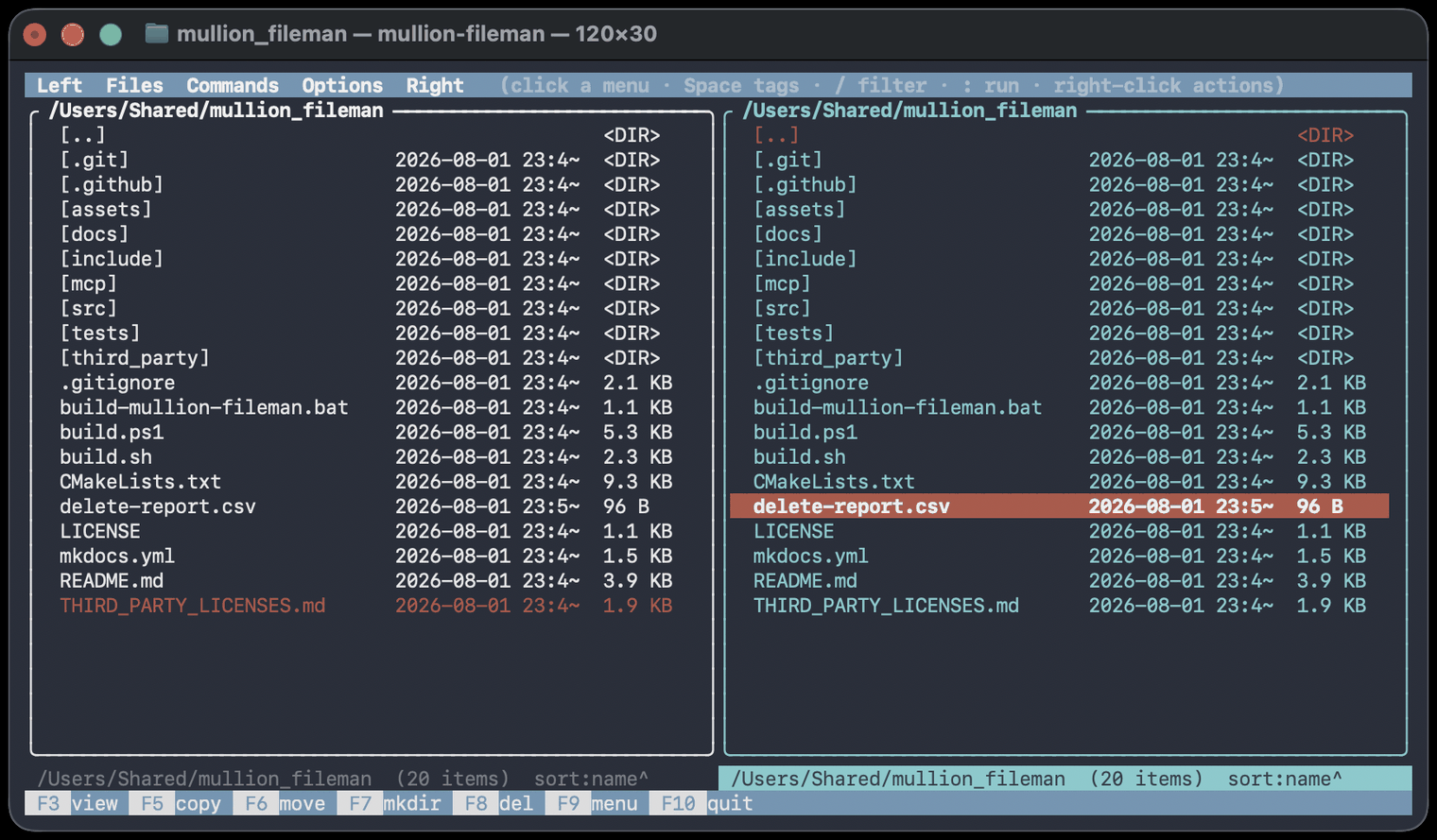
The UI operates as Norton Commander or Midnight Commander does. There are two panes side by side:
- Push Tab to go to the other pane.
- Push Enter to open a directory.
- Push Backspace to go to the parent directory.
- You can also use the Vim keys
jandk.
Each pane shows the name, date and size of each item. A status line shows the path, the number of items and the current sort.
The most important functions are:
- Tagging. Space tags the current row.
+and-tag rows by glob.*inverts the selection. Tagged rows become yellow and show an asterisk. Copy, move and delete apply to all tagged rows. - Quick filter.
/filters the pane while you type.Escremoves the filter.Enterkeeps the filtered view. - F-keys. F3 shows a file as text or hex. F5 is copy, F6 is move, F7 is mkdir and F8 is delete. F8 first shows a dry run and asks for confirmation before it removes files.
- Other keys.
topens the tree view.sopens the sort menu.xopens the Tools menu for bulk operations.:runs a shell command in the directory of the active pane.
You can also use the menu bar and the mouse. Double-click a folder to open it. Right-click to open a context menu. m opens a system monitor that shows the CPU, memory and GPU usage.
The TUI has two optional functions:
- A local AI agent (
a) that examines folders. It can only read files. - Voice input (
V) to speak to the agent.
To include them, use -DBUILD_MULLION_FILEMAN_AI=ON during the build. To run the agent on the GPU, also use -DMULLION_FILEMAN_AI_CUDA=ON. By default, these functions are disabled, thus the usual build stays small.
Use the tools from an AI agent
The project also has an MCP server. It is a small Python wrapper. It calls the same folder_* binaries over stdio. Thus, the C++ code has no dependencies:
cd mcp
pip install -r requirements.txt
python server.py
The server gives eight tools: compare, sync, find, view, clean, copy, move and delete. It finds the executables through $FOLDER_TOOLS_DIR. If this variable is not set, it uses the repository root. For Claude Desktop, add an entry to claude_desktop_config.json:
{
  "mcpServers": {
    "folder-tools": {
      "command": "python",
      "args": ["path/to/server.py"],
      "env": { "FOLDER_TOOLS_DIR": "path/to/repo" }
    }
  }
}
Then you can tell the agent to compare J:\Photos and I:\Photos by hash. You can also tell it to find *.log files larger than 1 MB in D:\logs. The agent uses the same dry-run defaults as the CLI.
Warning
WARNING: folder_parity --sync does not delete files. It only adds files and writes over files. Thus, a sync cannot delete a file that you forgot. But “sync” is not the same as “mirror”. Files that are only on the destination stay there. Read the CSV report before you sync important data.
Links
- Repo: github.com/sina5/mullion-fileman
- Docs: sinafathi.com/mullion-fileman
- Building · The TUI · MCP server
- Tool reference: folder_parity · organize · maintenance · media · system
Mullion FileMan operates on Windows, macOS and Linux. Issues and PRs are welcome.
Lead AI Engineer. I write about reinforcement learning, transformers, multi-agent systems, and the tools I build along the way.